Amazon affiliate link — supports Zipero for free. Go Premium to remove.
Extract PDF Pages
Pull out only the pages you need from a PDF. Great for sharing just one section.
1
Upload2
Process3
DoneDrag & drop files here
or click to browse from your computer
MAX SIZE: 20 MB
Fast Private
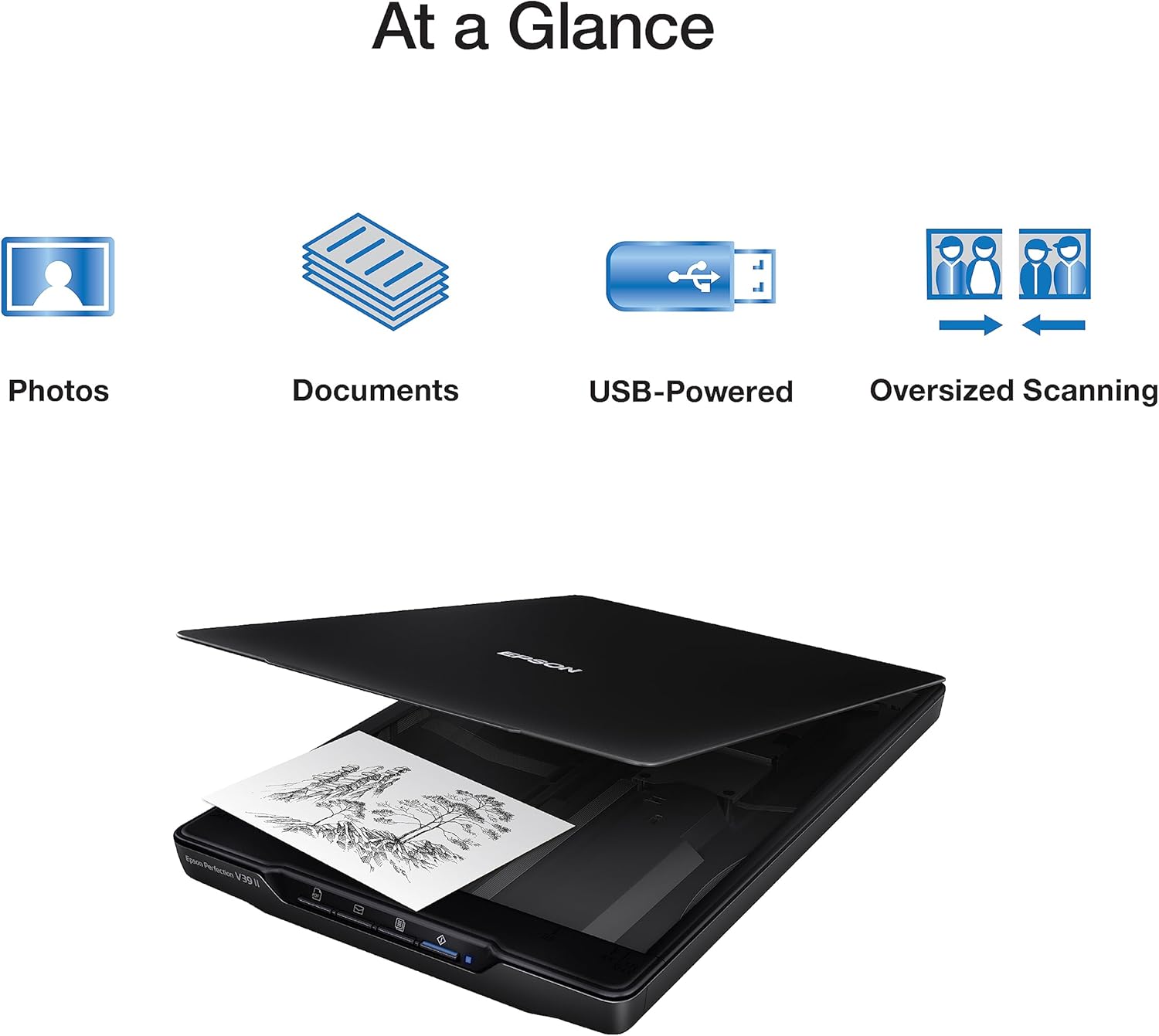
Scanner à plat
Epson Perfection V39 II
65€env.
View on Amazon
Amazon affiliate link — supports Zipero for free. Go Premium to remove.
Get exactly the pages you need — nothing more.
No need to send a 50-page PDF when your contact only needs page 3. Zipero lets you extract any page or range of pages and save it as a standalone PDF in seconds.
Just enter the page numbers you want. No account required and nothing to install — it works right in your browser.
Your PDF stays on your device the whole time. Nothing is uploaded or stored on our end.
How to extract pages from a PDF with Zipero
- 1Upload the PDF you want to work with by dragging it into the tool or clicking to browse your files.
- 2Enter the page numbers you need: a single page (e.g. 3), a consecutive range (e.g. 2–7), or a comma-separated list of individual pages (e.g. 1, 4, 6). All combinations are supported.
- 3Click Extract and download your new PDF containing only the pages you selected, at the exact same quality as the source.
When is PDF page extraction useful?
- ▸Sharing a single chapter or section: you have a 200-page report but your client needs only the executive summary on pages 1–3. Extract those pages and share a focused, lightweight file without revealing the rest of the document.
- ▸Isolating a signature page: legal contracts often require only the final signature page to be returned by the counterparty. Extract that one page rather than forwarding the entire confidential document over email.
- ▸Building a curated portfolio: extract your strongest work pages from several different portfolio PDFs and then use Zipero's Merge PDF tool to combine them into a single, polished selection.
How PDF page extraction preserves quality without re-encoding
Extracting pages from a PDF is a structural operation, not a visual one. The tool does not rasterise pages, print them, or re-encode them — it copies the PDF page objects from the source document directly into the result document. This means text remains real text (selectable and searchable), vector graphics remain vector (scalable without loss), and raster images remain at their exact original resolution.
Technically, a PDF page is a dictionary object with an associated content stream — a sequence of rendering operators describing how to lay out text, images, and shapes. Extraction copies this page object and all objects referenced in its resource dictionary (fonts, image XObjects, colour spaces). Objects shared between pages — a common font or a repeated header image — are correctly referenced in the result without unnecessary duplication.
The reason tools that 'print to PDF' an extraction produce worse results: they rasterise each page (converting it to a bitmap image) before reprinting, destroying text selectability and often increasing file size. Zipero's object-copy approach avoids this degradation entirely — what you extract is 100% faithful to the original source.
Frequently asked questions about PDF page extraction
Does extracting pages reduce their quality or resolution?
No. Zipero does not re-render or re-encode any content. It copies the selected pages directly from the source document at their original resolution, preserving all embedded fonts, images, and vector graphics exactly as they were.
Can I extract non-consecutive pages in a single operation?
Yes. Enter page numbers separated by commas — for example, 1, 5, 9, 12 — to extract any combination of non-consecutive pages in a single step. You can also mix ranges and individual pages, such as 1–3, 7, 11.
What happens if I enter a page number that does not exist in the PDF?
Zipero validates your page selection against the actual page count of the document before processing. If you reference a page that does not exist, an error is shown explaining the issue — no empty or broken PDF output is generated.
Related articles
How to Extract Pages from a PDF: Complete Guide
How to isolate one or several pages from a PDF without specialist software — methods, use cases, and best practices.
Merging PDFs: The Complete Guide
When and how to combine PDF files effectively, with a look at what actually happens inside the file during a merge.
How to Sign a PDF Without Printing It
Signing a PDF digitally is legal, fast, and requires neither a printer nor a scanner. The available methods explained clearly.
Scanner à plat
Epson Perfection V39 II
65€env.
View on Amazon
Amazon affiliate link — supports Zipero for free. Go Premium to remove.